On this page
To share a staging site with a client, give them a URL their own browser can reach, behind the lightest gate that still keeps strangers out: a private preview link, a password, an IP allowlist, a VPN or a temporary tunnel. Keep that URL out of Google with a password or a noindex header, and collect the client’s feedback on the page itself, so they never have to describe where they mean.
Why staging access trips up client reviews
Staging is private by default, which is the point of it and the source of most first-round friction. The client gets a link that asks for a login they do not have, or only works on the agency’s VPN, or is a localhost address that means nothing on their machine. Or the link works a little too well: nobody added a noindex header, and the staging copy starts showing up in search beside the live site.
The fix is to decide how the client gets in before the first review is scheduled, and to test that route from outside your own network.
Five ways to give a client access
1. A public preview URL
Many hosts create a unique URL for each deployment or branch. Anyone with the link can open it, so there is nothing for the client to do. The protection is that nobody else knows the address, which is enough for low-risk work if the preview also sends a noindex header.
2. A password
Most hosts can put a password on a staging environment, and any server can do it with HTTP basic authentication. The client types it once and the browser remembers it. Send the password in a separate message from the link, so a forwarded email does not hand over both.
3. An IP allowlist
Only listed network addresses can reach the site. It suits a client whose team works from an office with a fixed address, and fails the moment someone reviews from home, a phone or a train.
4. A VPN or single sign-on
The strongest option and the heaviest. Clients rarely have access to an agency’s VPN, and asking them to install one for a review is a reliable way to receive the feedback by email instead. Keep it for regulated or confidential projects.
5. A tunnel from your machine
Tools such as ngrok and Cloudflare Tunnel give a server running on your laptop a public URL. That is ideal for a ten-minute look on a call, and wrong for a review round that lasts days: the address disappears when the tunnel stops or the laptop sleeps.
Which option fits
| Option | Client effort | Keeps strangers out | A hosted review link can reach it |
|---|---|---|---|
| 1Public preview URL | None | Only while the link stays private | Yes |
| 2Password | Types it once | Yes | No, use a snippet |
| 3IP allowlist | None, from an allowed network | Yes | No, use a snippet |
| 4VPN or single sign-on | Installs or signs in | Yes | No, use a snippet |
| 5Tunnel from your machine | None | Only while it runs | Usually, while it runs |
For most client reviews the choice is between the first two: a private preview URL with a noindex header when the work is not sensitive, and a password when it is.
Keep staging out of Google
A staging site that gets indexed competes with the live one for the same searches and shows the public an unfinished version. Two things work, and one common approach does not:
- A password works. A crawler cannot see past it, so nothing is indexed.
- A noindex header works. Send
X-Robots-Tag: noindexon every response from the staging host, or a robots meta tag on every page. The page must stay crawlable for the crawler to read it. - robots.txt alone does not. Disallowing staging in robots.txt stops crawling, not indexing: a staging URL linked from anywhere can still be listed, and the block also hides any noindex tag from the crawler.
Whatever you use, it must not travel to production. Removing the staging noindex is on the pre-launch QA checklist for a reason: few mistakes hide a new site more completely.
Collecting feedback on staging
Access is half the job. The other half is making sure the client’s comments land on the page, in one place, instead of in an email that says “the thing near the top”.
- Give the round a scope and a deadline, and freeze the build while it runs. The website review process guide covers rounds in detail.
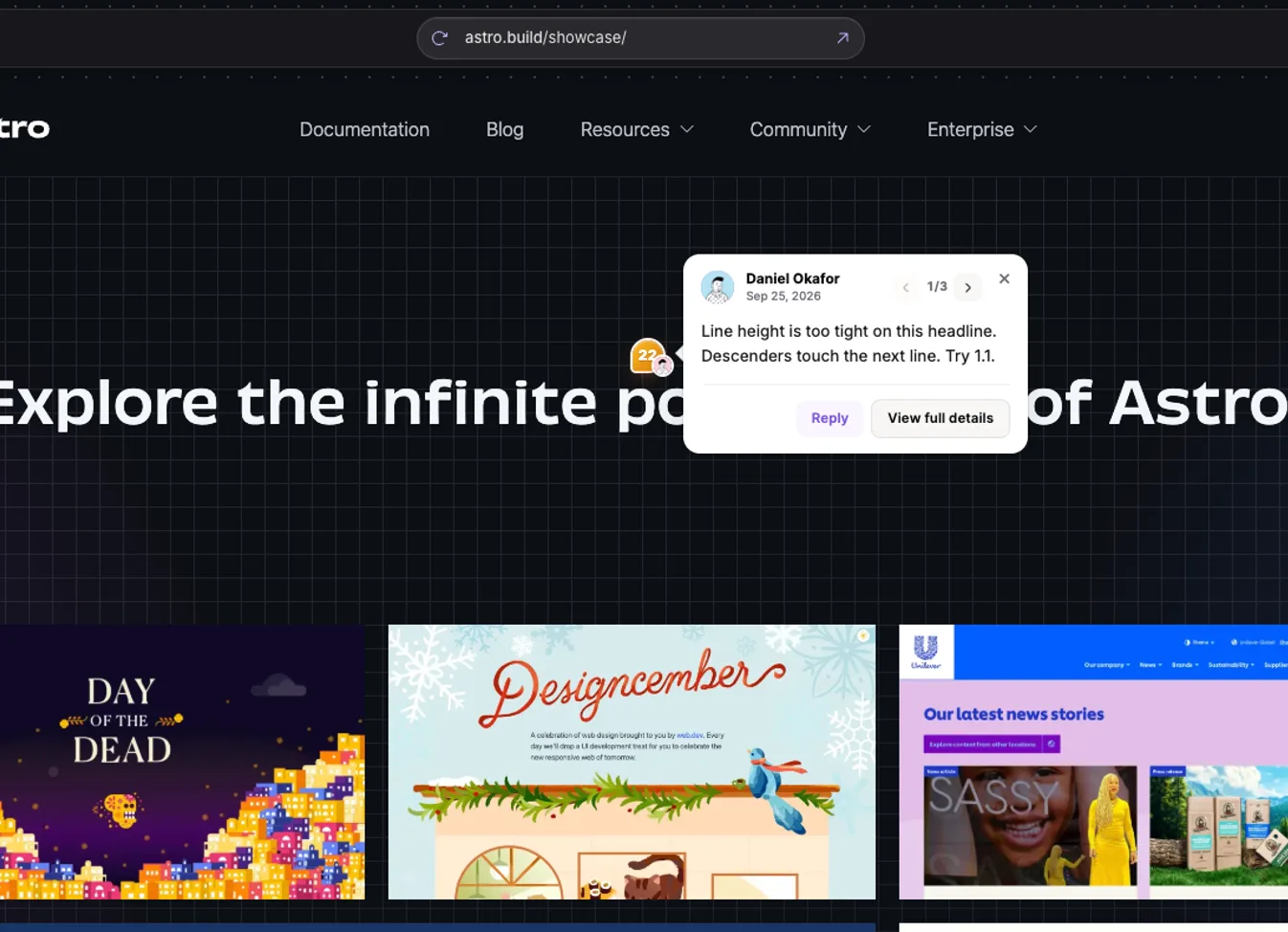
- Let the client comment on the page itself, so every note carries the element and a screenshot. The options are compared in how to annotate a website.
How LayerDock handles the two kinds of staging:
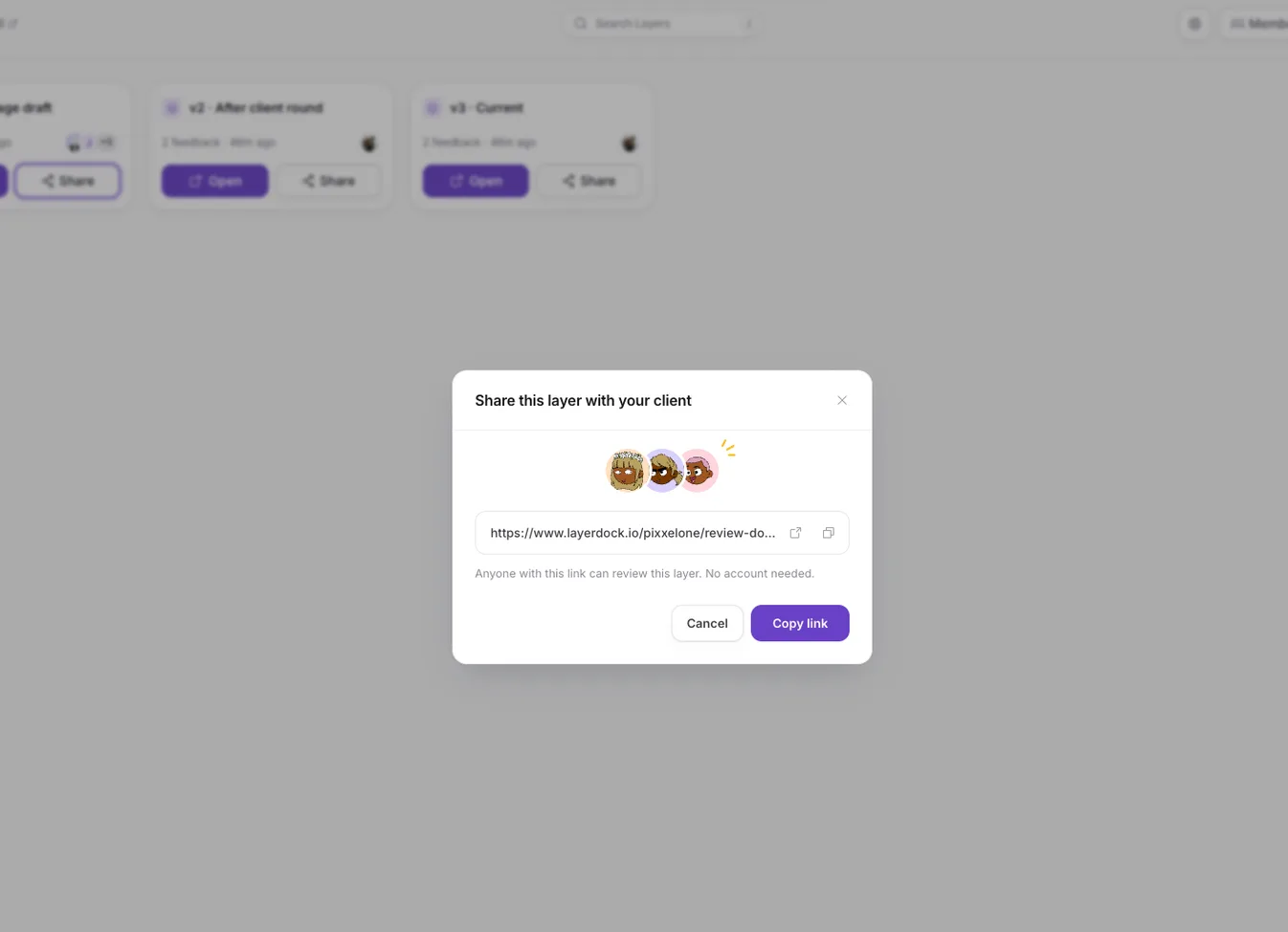
- Publicly reachable staging, such as a preview URL. Paste the staging URL into a dock and share the review link. LayerDock loads the page through its review proxy and adds the pin tool, so nothing is deployed to the site and the client needs no account.
- Staging behind a password, a VPN or a login. A proxy cannot get past the gate, so add LayerDock’s one-line snippet to the staging site and turn on “Site has the Layerdock snippet” in the dock’s settings. The review page then loads the real site in the reviewer’s own browser, which means the reviewer needs access too (the password, or the VPN), and the site must allow being shown in a frame: an
X-Frame-Options: DENYheader or a strictframe-ancestorsrule would block it.
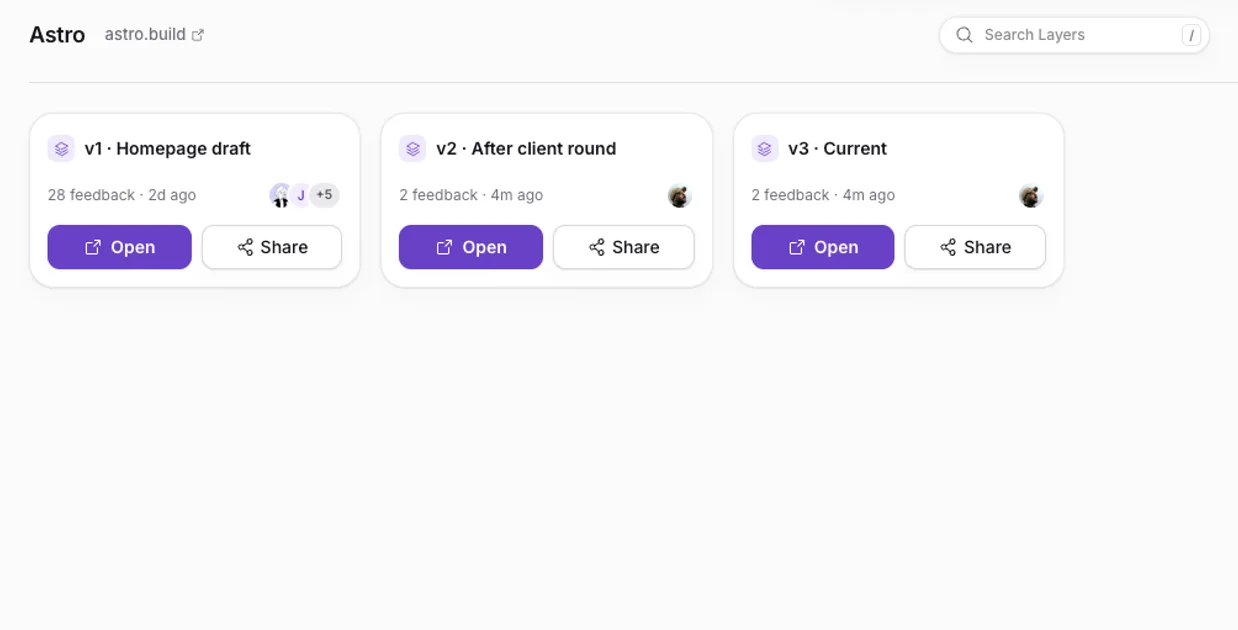
Either way, each round can be its own layer in the dock, so feedback on this build never mixes with the last, and pins stay attached to their element through the next redeploy. The Free plan includes a client link on one dock.
Before you send the link
- Open it in a private window, signed out of everything. Does it load for someone who is not you?
- If you use an IP allowlist, try it from a phone on mobile data.
- Send the password, if there is one, in a separate message.
- Check the noindex header is on the staging responses.
- Freeze the build, and tell the client which round or build they are looking at.
- Put the scope and the deadline in the message itself.
- Note when access should end, and close it after launch so staging does not linger.